SDS: Jamworks Knowledge Base
Jamworks is an AI notetaking support platform. With Jamworks, you record your lectures, and Jamworks will create:
- AI generated notes
- AI generated summary
- AI generated audio highlights
- A full transcription of the recording
- Study tools based on the recording.
It is a slick all-in-one platform available to students who have been approved for the notetaking support accommodation.
If you are approved for the notetaking support accommodation, and would like to be added to Jamworks, please contact SDS@du.edu.

Getting Started with Jamworks
Once you have been added to the SDS Jamworks account, you will need to do the following:
- Check your DU email! You will get an email from Jamworks to finish setting up your account.
- Follow the steps in that email.
- Download the Jamworks app to your computer/tablet/device.
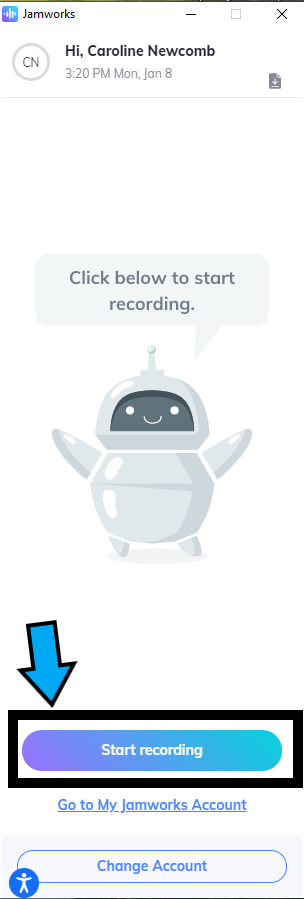
- Record your class using the app.
- After class is done, the recording will automatically upload to the JamWorks cloud.
- Go to Jamworks.com and log in (or click “Go to my JamWorks account” at the bottom of the app)
- Select the correct recording
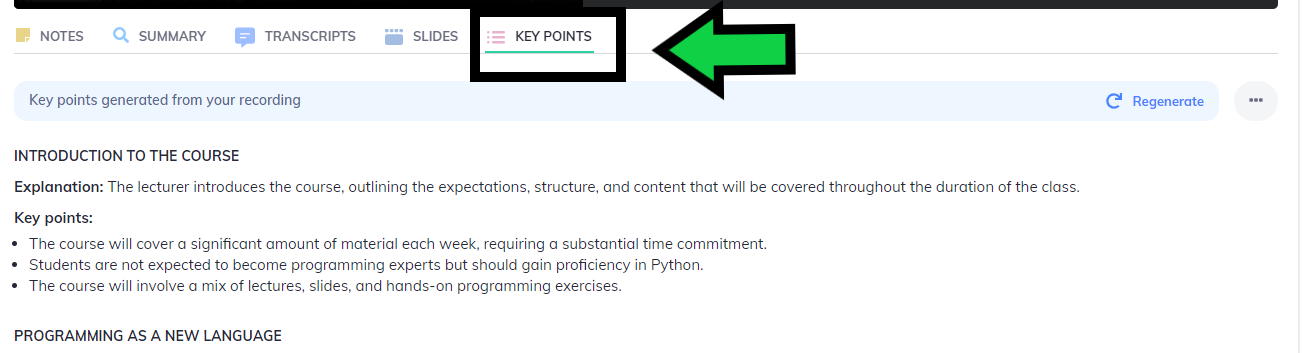
- Go to “Key Points” below the video to see notes
JamWorks Tutorial Video
To use Jamworks, you will need:
- The Jamworks app
- The Jamworks webpage
Step 1: Record your Class
Record your class using the JamWorks App. You can highlight important sections as you go!
Step 2: End your recording
When class is done, end your recording. Once ended, the recording will automatically upload to your Jamworks account.
Step 3: Access your notes
Go to the Jamworks website (not the app!). Select the correct recording, then click "key points." You will find your notes here!